Flow AI Video Generator for every creative workflow.

Create with MiniMax H3, Gemini Omni, Veo 3.1, Seedance 2.0, or Seedance 2 Mini in Flow AI Video. Start from text or supported reference media, track every generation, and keep finished videos ready to download or reuse.

Create with Flow AI Video
Model
Reference Media
Upload reference videos for this mode. You can add up to 1 videos.
Prompt
Use @ to reference content. E.g.: @image1 mimic the pose, motion from @video1, audio style from @audio1
Aspect Ratio
Resolution
Duration
4s

Video samples

How credits are calculated
Video rate768P uses 18 credits per second; 2K uses 29 credits per second.
Charged timeGenerated video time plus any input video time.
Input imagesThe first 5 images are free; each additional image uses 9 credits.

Total credits = video rate x charged time + additional image credits. Input audio is free.

Made with Flow AI Video

See what a detailed brief can put in motion.

Explore cinematic scenes, advertising, interfaces, dynamic posters, image-to-video animation, fine detail, and synchronized audio across the creative workflows available in Flow AI Video.

2K detail demo
E-commerce campaign
Game interface
Native stereo demo
Dynamic poster
Cinematic generation
Movie intro

From prompt to video

Give each model the inputs it understands.

Combine prompts with images, video, or audio when the selected model supports them. Flow AI Video shows the reference modes, durations, resolutions, and creative controls available for each model.

Audio + image → video

Input image
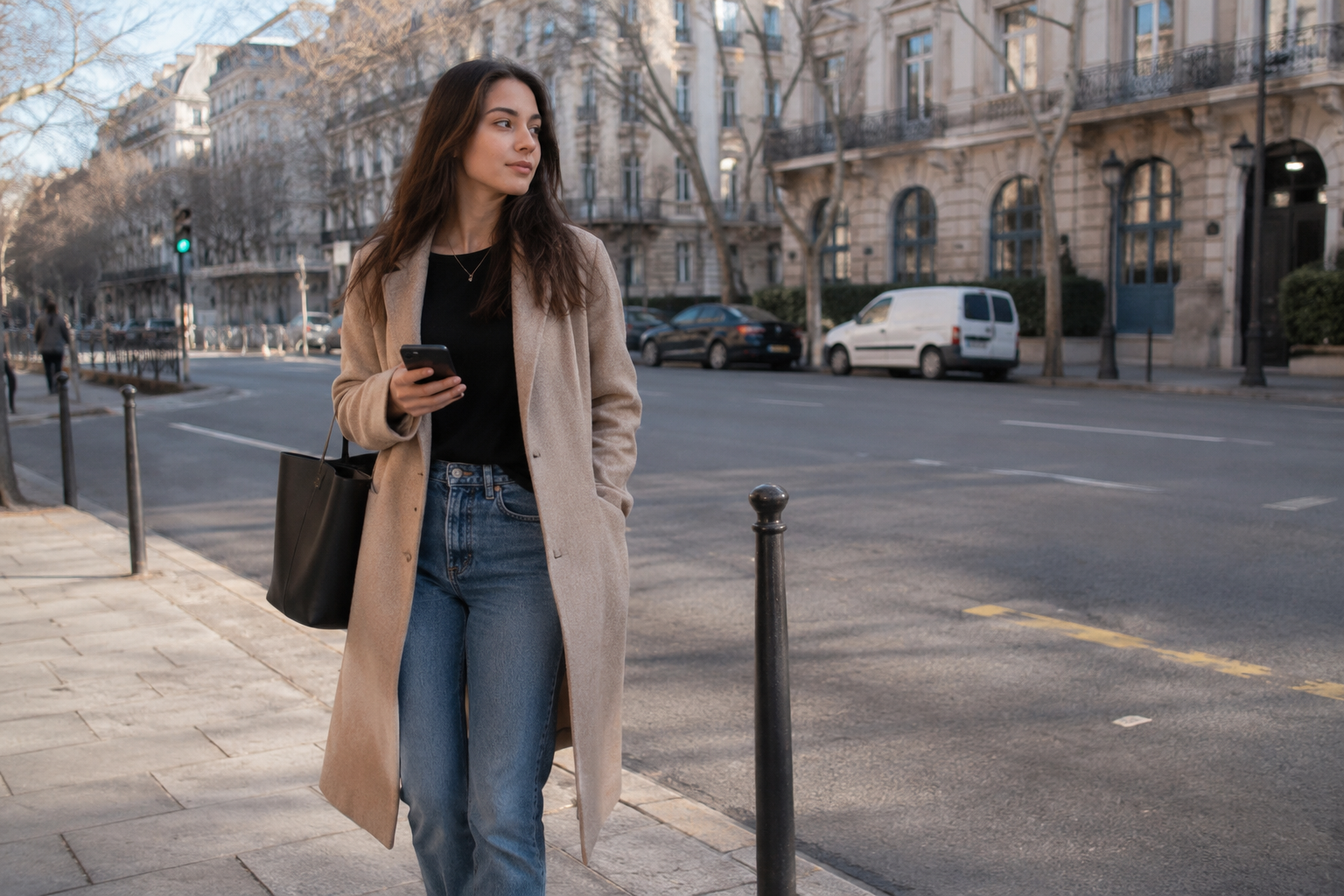
Image input for the audio reference example
Input audio
Prompt
have the character in Image sing, with the vocals matching Audio

Image → video

Input image
First-frame input for image-to-video example
Prompt
Animate the source image into a 12-second restrained cinematic rooftop scene. Preserve the woman’s face, tied shoulder-length hair, pale blue shirt, charcoal-gray skirt, flat shoes, woven basket, rooftop architecture, clotheslines, fabric colors, and evening lighting. [0–3 seconds] Begin almost still. A light breeze moves loose strands of her hair, the lower edge of her skirt, and the corners of the hanging bedsheets. She looks upward slightly while holding the basket naturally at waist level. [3–7 seconds] A stronger gust travels across the rooftop from left to right. The nearest sheets lift first, followed by the fabric rows farther behind, creating a clear sequence of physically connected motion. She steadies the basket with one hand and reaches toward a sheet that has loosened from one clothespin. [7–10 seconds] Track gently beside her as she takes several natural steps through the narrow passage between the hanging sheets. One sheet briefly moves across the foreground and partially obscures the camera, then lifts away to reveal her again. Preserve correct spatial relationships and prevent her body from passing through the fabric. [10–12 seconds] She reaches the clothesline, pulls the loose corner into place, and secures it with a wooden clothespin. The wind gradually softens. Warm evening light passes through the fabric and falls across her face as the sheets settle into slower movement. Audio: rooftop wind, fabric flutter, distant city ambience, soft footsteps, wooden clothespins touching inside the basket, and a minimal original acoustic score. Keep the woman’s identity, clothing, basket, architecture, fabric placement, and lighting consistent. Maintain natural walking, hand movement, cloth weight, wind direction, and foreground occlusion. No dialogue, text, logos, product placement, sudden weather changes, duplicated fabric, floating clothespins, body distortion, fabric passing through the subject, changing buildings, rapid camera movement, or dramatic fantasy effects.

Image → video

Input image
First-frame input for image-to-video example
Prompt
Animate the source image into a 12-second restrained cinematic scene. Preserve the woman’s face, chin-length dark hair, dark green wool coat, cream scarf, brown shoulder bag, transparent umbrella, train design, platform layout, and evening color palette. [0–3 seconds] Begin almost still. Rain falls steadily, water moves along the platform edge, and warm reflections shimmer subtly. The woman breathes naturally and shifts her gaze slightly toward the train. [3–7 seconds] The train doors close behind her and the interior lights brighten for a moment. A soft gust moves her scarf and a few strands of hair. She tightens her grip on the umbrella without opening it. Keep the performance understated and realistic. [7–10 seconds] The train starts moving slowly. Track sideways with the woman while the lit windows pass behind her, creating gentle parallax and moving reflections across her face and coat. [10–12 seconds] After the train clears the platform, she takes one small step forward and looks down the now-empty track. End on a quiet medium shot with rain continuing and distant red signal lights softly out of focus. Audio: natural rain, low train motor, closing-door chime without spoken announcements, wheels beginning to move, soft fabric movement, and subdued station ambience. No dialogue, subtitles, dramatic crying, umbrella opening, identity change, wardrobe change, extra characters entering the foreground, distorted train geometry, rapid camera movement, or exaggerated wind.

Text → video

Prompt
Create a 15-second cinematic contemporary-dance scene in a quiet historic courtyard shortly after rainfall. The courtyard has pale stone arches, weathered columns, shallow puddles, and soft reflections across the wet ground. A young woman stands alone in the center wearing a flowing dark red midi dress with long sleeves and simple black dance shoes. Preserve her face, hairstyle, clothing, and body proportions throughout the entire performance. [0–3 seconds] Begin in a restrained medium-wide shot from behind. The dancer stands completely still while water drips from the surrounding arches. A soft piano note begins. She slowly turns her head, then rotates her shoulders and body toward the camera with controlled natural movement. [3–7 seconds] She begins a contemporary dance phrase with one extended arm, a grounded step forward, a low turn, and a smooth recovery into an upright pose. Her dress follows the movement with believable weight and delayed fabric motion. Keep both feet connected naturally to the wet stone surface without sliding. [7–11 seconds] The rhythm becomes stronger. Track laterally as she performs two connected turns, opens both arms, lowers briefly through the knees, and rises into a longer traveling movement across the courtyard. Her reflection should remain aligned with her position and motion in the puddles. [11–15 seconds] Move slightly closer as she completes one final controlled rotation and stops in a stable pose with one arm raised and the other lowered. The music cuts to a quiet sustained note. Hold the final posture while fabric and loose hair settle naturally and rain continues dripping in the background. Camera: measured dolly movement, restrained lateral tracking, natural perspective, no rapid orbiting or abrupt zooms. Lighting: soft overcast daylight with subtle warm reflections from the surrounding stone. Audio: original minimal piano and low strings, light rainfall, fabric movement, footsteps on wet stone, and natural courtyard ambience. Maintain realistic anatomy, continuous choreography, stable facial identity, accurate hand and foot placement, and physically believable clothing motion. No extra dancers, cuts to unrelated locations, duplicated limbs, distorted hands, floating feet, sudden costume changes, exaggerated acrobatics, theatrical facial expressions, subtitles, text, or logos.

Video → video

Input video
Prompt
Transform the entire video into a vibrant Lego world. The person, the desk, and every object in the room should be constructed from high-quality plastic Lego bricks. Keep the original waving motion and spatial layout perfectly. The lighting should be bright and clean, like a professional Lego toy commercial.

Why Flow AI Video

Choose the right model without changing your workflow.

Flow AI Video keeps model selection, prompting, reference uploads, generation tracking, and asset reuse in one workspace. Each model keeps its own supported inputs and settings clear.

01

Choose a model for the task

In Flow AI Video, compare supported inputs, durations, resolutions, aspect ratios, and audio options before you create.

02

Start with text or references

Write a prompt, then add images, video, audio, or first and last frames when the selected model supports them.

03

Keep the full brief together

Describe the subject, action, camera, style, pacing, and reference relationships in one prompt instead of splitting direction across separate tools.

04

Review settings and cost first

See the selected model, output settings, and required credits before starting a generation.

05

Track work in the generation queue

Follow processing tasks from the queue while you continue working elsewhere in the site.

06

Reuse completed results

Successful videos are saved to the Library for review, download, and reuse as references. Failed generations automatically return the credits charged for that attempt.

How it works

Go from an idea to a reusable video asset.

Choose a model, describe the result, add supported references, and review the output settings and credit cost. Flow AI Video tracks the task and saves successful results to your Library.

01

Choose a model and describe the result

Pick the model in Flow AI Video that matches your workflow, then describe the subject, action, camera movement, style, atmosphere, and sound you want.

Flow AI Video prompt instruction interface
Choose a model and describe the result
Model and prompt · define the subject, action, camera, style, and sound
02

Add references when they help

Upload supported images, video, or audio to guide the subject, motion, timing, or sound. You can also choose compatible media already saved in your Library.

Reference media added to a Flow AI Video project
Add references when they help
References · upload images or videos, or choose from Library
03

Choose your settings and generate

Review the duration, aspect ratio, resolution, audio option, and credit cost available for the selected model. Follow progress in the queue, then find successful results in your Library.

Flow AI Video generation settings and result review
Choose your settings and generate
Generate · review settings and credits, then follow the result

Built for production work

One video workspace for many kinds of creative briefs.

Use Flow AI Video models and reference workflows for campaign production, product storytelling, previsualization, motion design, and fast creative iteration.

Advertising campaigns

Explore a hero film, paid-social variation, or localized cutdown from the same set of product, motion, voice, and brand references.

Brand films

Use typography, product color, camera language, voice, and sound references to direct a short branded sequence.

E-commerce launches

Turn packshots and product references into demonstrations, macro reveals, seasonal scenes, and vertical storefront videos.

Dynamic posters

Use campaign art as the design reference, then describe the movement, pacing, sound, and text details the animated version should follow.

Film previsualization

Explore lenses, blocking, camera movement, transitions, and title sequences before crews, locations, and post-production are booked.

Games and interactive worlds

Develop cinematic tests, animated UI, environmental motion, and character moments from one world-building reference set.

Product design

Show a proposed object in context, animate its behavior, compare finishes, and communicate an interaction before the physical prototype is ready.

UI and motion concepts

Move from a static interface frame to a presentable interaction concept with transitions, sound, and product storytelling included.

Model selection guide

Compare the video models available in Flow AI Video.

Each Flow AI Video model supports a different mix of reference media, duration, resolution, aspect ratios, and output controls. Start with the requirements that matter most to your brief.

Options below reflect the current Flow AI Video configuration. Availability and credit costs may vary by plan, region, provider, and generation mode.
CriterionMiniMax H3Gemini OmniGoogle Veo 3.1Seedance 2.0
Generation inputs and referencesPrompt, up to nine images, three videos, and three audio filesPrompt with image references or one source videoPrompt with one to three reference images, or first and last framesPrompt, up to nine images and three videos, or first and last frames
Generation workflowsText-to-video, reference-led generation, first/last frame, and video editingText-to-video, image-guided generation, and video editingText-to-video, reference images, and first/last frame transitionsText-to-video, reference-led generation, first/last frame, and video editing
Available duration4 to 15 seconds4, 6, 8, or 10 seconds4, 6, or 8 seconds4, 5, 6, 8, 10, or 15 seconds
Available resolution768P or 2K720p, 1080p, or 4K720p, 1080p, or 4K480p, 720p, or 1080p
Available aspect ratiosSix formats from 21:9 landscape to 9:16 portrait16:9 or 9:1616:9 or 9:16Seven fixed formats plus adaptive framing
Distinctive controlsImage, video, and audio references with precise media mentions in the promptOne source video up to two minutes for video-guided workflowsDedicated reference-image and first/last-frame modesOptional generated audio and adaptive aspect ratio

How creators use the workspace

More model choice without more workflow overhead.

Teams can match a model to each deliverable while keeping prompts, references, costs, task status, and completed work in one consistent production flow.

Some briefs need a fast proof of concept; others need careful control over motion and detail. I can switch models without changing how the team reviews the work.
Portrait of Emi Nakamura

Emi Nakamura

Head of Creative Production, Kanso Works

Keeping the prompt, reference frames, and source footage together saves me from hunting through old project folders. When a direction works, I can pick it up again without rebuilding the setup.
Portrait of Andre Collins

Andre Collins

Freelance Film Director

The cost preview makes planning a batch of campaign variants much more predictable. We can explore broadly at the draft stage, then spend more only on the concepts that earn a final pass.
Portrait of Anika Rao

Anika Rao

Performance Creative Lead, BrightCart

I usually start with a loose motion study, compare a few model outputs, and carry the strongest one into the next round. The workspace makes that experimentation feel like one project instead of scattered tests.
Portrait of Mateo Ruiz

Mateo Ruiz

Motion Design Director, Common Thread

Our producers can see what is running, what is ready, and which result belongs to each brief. That visibility has made handoffs between the creative and campaign teams noticeably calmer.
Portrait of Claire Beaumont

Claire Beaumont

Brand Content Director, Atelier North

A launch film and its vertical cutdowns rarely need the exact same treatment. I can choose the right model and format for each deliverable, then keep every approved version easy to find.
Portrait of Ren Ito

Ren Ito

Social Video Editor, Daybreak Media

Before you create with Flow AI Video.

Learn how model selection, reference media, credits, usage rights, and the Library fit into the workflow.

Creative studio at dawn with a cinematic production setup
Start your next video

Bring the brief. Choose the model. Create the video.

Start from text or supported reference media, review the settings and credit cost, then follow the result from the generation queue to your Library.